Applies To: ■ New PoliteMail ■ Legacy PoliteMail
Version: ■ 4.9+ ■ 5.0+
If you’re using PoliteMail and an image does not display when being received in classic Outlook, here are a few settings you can check:
 Some image file types, such as .svg and .webp, do not natively render in classic Outlook. There is a Setting available to System Admins, however, that will convert these file types to .png (Settings > Server > UI Overrides > Embed Unsupported Images a PNGs for classic Outlook).
 Some image file types, such as .svg and .webp, do not natively render in classic Outlook. There is a Setting available to System Admins, however, that will convert these file types to .png (Settings > Server > UI Overrides > Embed Unsupported Images a PNGs for classic Outlook).
If you are using classic Outlook and you are using the Add Image functionality, there are some additional things you can check:
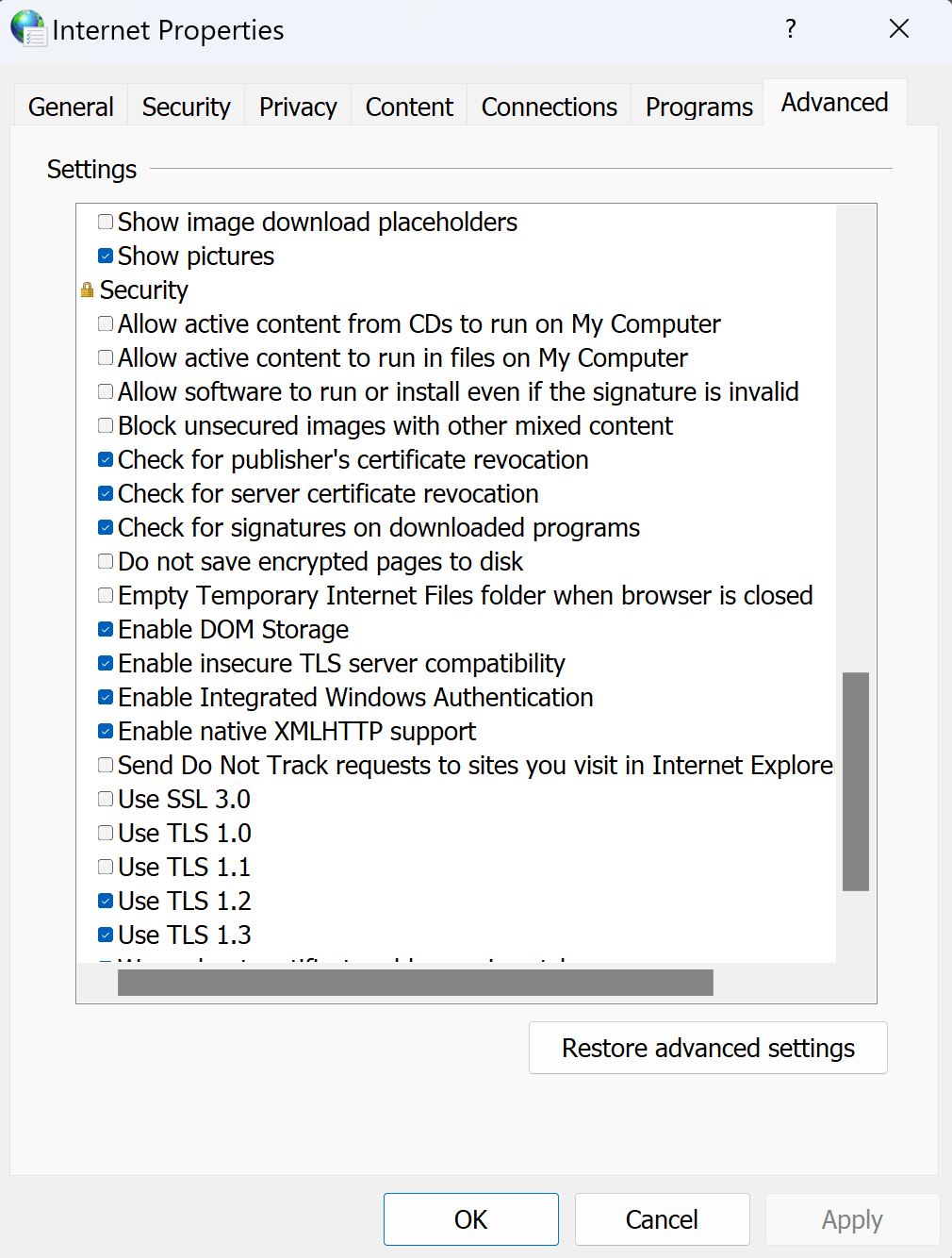
- Open Internet Options, found in your Control Panel.
- Click on the 'Advanced' tab and scroll down to the 'Security' section.
- Find the “Do Not Save Encrypted Pages to Disk” option. If this is enabled, this is likely the cause of the issue. Uncheck the box and click 'OK'.
If the problem persists, check the Trust Center settings in Outlook (desktop only):
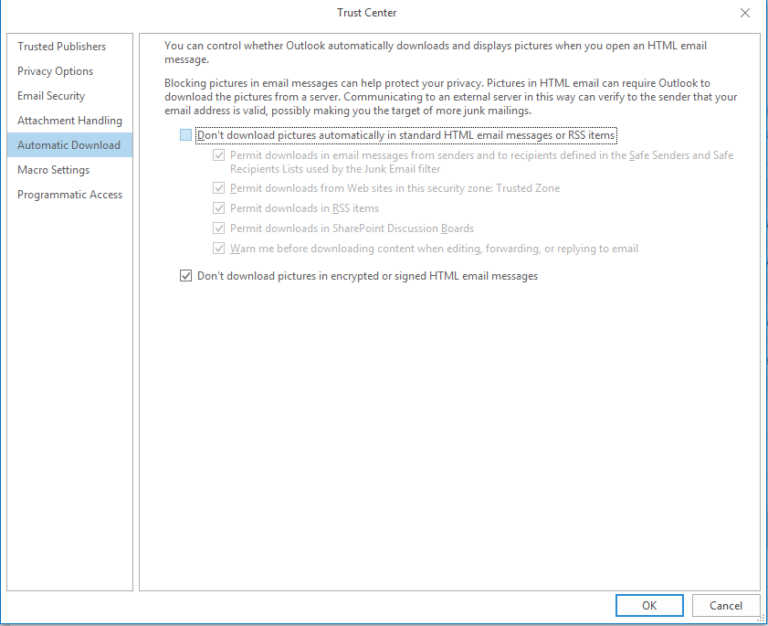
- Outlook File > Options > Trust Center > Trust Center Settings > Automatic download
- Look at the “Don’t download pictures automatically in Standard HTML email messages” setting
- Uncheck this if it is enabled
Images Not Displaying in PoliteMail Online
ONLINE If an image or video is not showing in PoliteMail Online but does appear in PoliteMail for the desktop, this may due to the Content Security Policy (CSP) in your PoliteMail configuration. For maximum security, content from outside domains may be blocked by PoliteMail, and the domain the content is from must be whitelisted. This is a simple configuration update and can be done quite easily by contacting server support at PoliteMail.
Images Not Displaying in Beefree
If you are using Beefree, this article contains information about .SVG files not displaying.
If you are using Beefree, this article contains information about stock images not displaying.

