Applies To: ■ New PoliteMail ■ Legacy PoliteMail
Version: □ 5.0 □ 5.1 □ 5.2 ■ 5.3+
In PoliteMail Online from version 5.3 on, you can click on the 'Send Options' button and you will see an option to view the message size in the drop-down menu.
In PoliteMail for the Desktop or for M365, multiple steps would be needed, as described below. This will work with any version of PoliteMail.
- With your message created, do Preflight Test Send to send yourself the message.
- Once sent, go to your Metrics Report for that message.
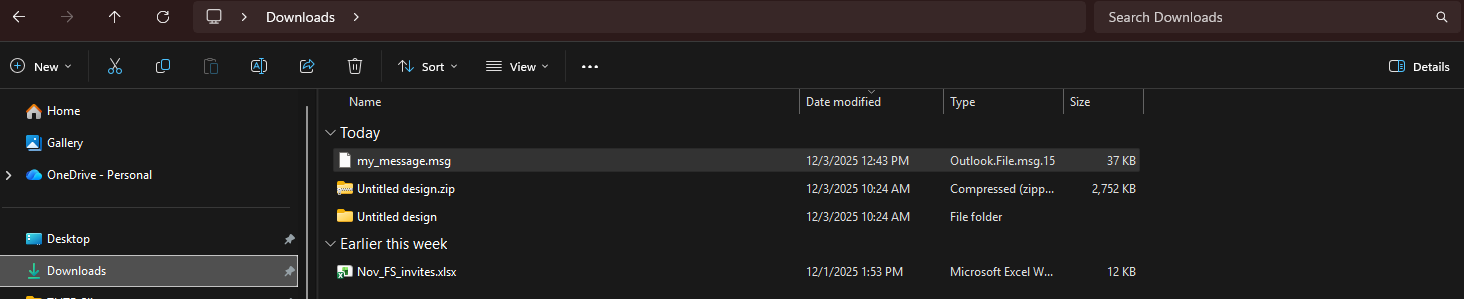
- Click the 'Download' button found in the upper right. Your PC will download them to your Downloads folder by default.

- Once downloaded, open the Windows Explorer application on your computer.
- Find the Downloads folder on the left and click on it to view its contents on the right.
- Right click on your message and select 'Properties'. A window will appear that displays information about the file, including the file size.