Creating Anchor Links in Beefree
Anchor links are links that take the reader to another spot within the message, and are useful in longer messages to allow a reader to skip to a specific section.
Beefree’s email builder does not have a native “internal link” option, so you use a Custom HTML block to define anchors, then link to them.
Define the anchor where you want to land
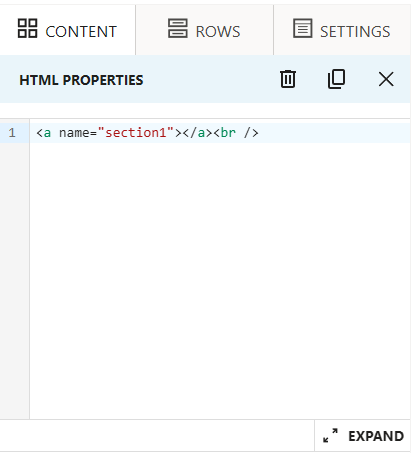 Drag a Custom HTML content block to the spot you want the jump to go to (e.g., above a section heading).
- In the HTML for that block, add something like: <a name="section1"></a><br/> , replacing 'section1' with your own unique name. Make it simple and memorable, because you’ll reference it in the link.
 Drag a Custom HTML content block to the spot you want the jump to go to (e.g., above a section heading).
Create the link that jumps to the anchor
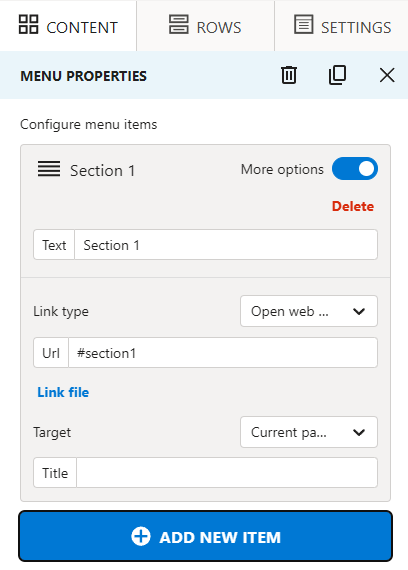
- You can use the Menu content block to create a set of anchor links, or select the text, button, or image at the top that you want to act as the “table of contents”.
- With a Menu block, open the additional options and set the URL to "#section1" (the # plus your anchor name). For other blocks, use Insert link and set the URL there.
- Repeat with additional anchors (section2, section3, etc.) and corresponding links.
Do a Preflight Test Send and click the links to make sure they scroll within the message.
Be aware: some email clients do not support anchor links; behavior can vary (especially mobile apps).

