Applies To: ■ PoliteMail Online ■ PMUA ■ PoliteMail Desktop
Version: ■ 4.9 ■ 5.0 ■ 5.1+
Creating a link to another part of an email message, or any html-enabled page for that matter, is known as creating a bookmark or an anchor link. Once a bookmark is created, you can then create a link that will direct the user directly to the bookmark instead of simply the top of the page.
Before PoliteMail v5.25
If you are not on version 5.25 or later of PoliteMail, creating a bookmark is possible if you view the HTML of the message body. In the desktop version of Outlook, this can typically be done by right-clicking in the white space of the message and selecting 'View Source', although it's not always very easy to view the actual message HTML.
If you are able to view the HTML of the message body, you can create a bookmark as you would any HTML page by following this guide.
PoliteMail Online v5.25 and later
PoliteMail Online version 5.25 and later uses a new editor which allows the creation of bookmarks without having to view and enter HTML code. Note that this is for PoliteMail Online only, not PoliteMail for the Outlook desktop or M365, and works only with the new PoliteMail Builder.
Creating the Bookmark
- Select the text that you would like to bookmark. This is the text that you want to create a link to.
- Click the
 button. This will open the link dialog window.
 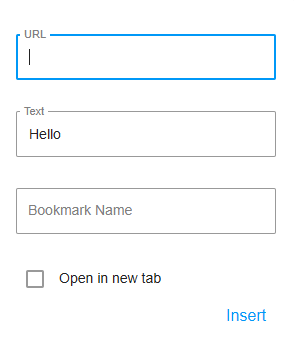 Since this is the bookmark and not the link, leave the URL and Text fields blank, and enter the name of your bookmark in the 'Bookmark Name' field, and then click 'Insert'.
 button. This will open the link dialog window.
 Since this is the bookmark and not the link, leave the URL and Text fields blank, and enter the name of your bookmark in the 'Bookmark Name' field, and then click 'Insert'.
Creating a Link to the Bookmark
- To create a link to a bookmark, select the text that you would like to create the link from.
- Click the button. This will open the link dialog window.
- In the URL field, enter a # symbol, followed by the bookmark name, and then click 'Insert'.
Creating Bookmarks in Beefree
The Beefree editor offers a content block called a Menu that you can use to create a 'Table of Contents' at the top of your email what will contain links to the various parts of the message.
From there, create an HTML block where each bookmark should go, and enter the code below in the HTML:
<a name="section1" id="section1"></a>where 'section1' is the name of your bookmark that you entered in the Menu.
Note that using the Menu block is not necessary; you can always create an HTML block instead and enter the HTML manually.

