Applies To: □ PoliteMail Online □ PMUA ■ PoliteMail Desktop
Version: ■ 4.9 ■ 5.0 ■ 5.1+
Sometimes when connecting to the PoliteMail Server, typically after an update to Outlook or PoliteMail, your login credentials may fail, despite being accurate. This is typically due to a browser cache issue, and the cache must be cleared. Clearing your internet cache should always be one of your first troubleshooting steps when encountering an issue with PoliteMail.
If you are using PMUA: You will need to clear your Office cache, the process of which is documented by Microsoft here.
Clearing the IE Cache (v5.0 or lower)
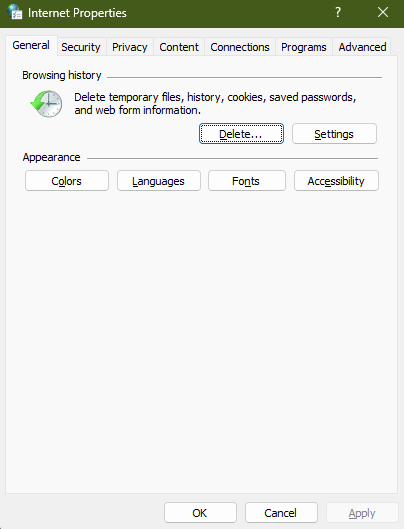 From your desktop, go to your computer's Control Panel, select Internet Options, then select Delete browsing history and cookies. The Internet Properties window will appear.
- Click the 'Delete' button. The Delete Browsing History window will appear.
- Make sure Temporary Internet Files, Cookies, and History are checked. Then click 'Delete'.
- Restart Outlook.
 From your desktop, go to your computer's Control Panel, select Internet Options, then select Delete browsing history and cookies. The Internet Properties window will appear.
Clearing the Cache in Microsoft Edge (PM v5.05+)
Note this does not clear the cache for the Outlook Desktop.
- To clear the cache in the Edge browser, open Edge and click on the ... button in the top right.
- Click on Settings > Privacy, Search, and Services. You will see a section titled, "Clear Browsing Data". Select "Choose what to clear".
- We recommend marking all four options to be cleared and go back to at least the last time everything was working properly.

