Applies To: ■ New PoliteMail □ Legacy PoliteMail
Version: □ 5.0 □ 5.1 □ 5.2 ■ 5.3+
Adding an image in Beefree involves first dragging over an Image content block, and then clicking the 'Browse' button to add the specific image you want.
- You can upload any local image from your computer by clicking the 'Upload' button. Locate your file and select it, and it will be uploaded to your library in Beefree. Then, select it by clicking 'Insert'.
 Import an image from a cloud storage service such as OneDrive or Box!
- You can import an image stored in a personal cloud storage service such as Facebook, Box, Google Drive, Google Photos, OneDrive, or any image with a url by clicking the 'Upload' button. Note you will need to create the connection first, so you will need to enter your credentials. Company/business accounts will not work; you'll need to download the image locally and then upload it.
- You can select from over 500k stock images, provided by Pexels, at no charge by clicking the 'Search free photos' button.
Importing Images from the PoliteMail Builder
If you have images stored in the PoliteMail Builder, you will need to find the url for the image and then either use the Import button described above, or create an HTML block and insert the url there.
Finding the url in the PoliteMail Builder
- Save your message as a Draft and switch to the PoliteMail Builder.
- Click on the < > button in the toolbar to view the html of the message.
- Find the html that corresponds to the image. This will typically look something like the below:
<div style="text-align: left; display: block;"><img class="fr-dib fr-fil" pmattr="image" src="https://training-release2.pmail2.com/PoliteMail/images/CEO%20Letter%20Q3%20Interim%20Report.png" width="640" height="200"></div>- The content in quotes after the 'src=' is the url of your image. Copy it to the clipboard. In this example, it would be:
https://training-release2.pmail2.com/PoliteMail/images/CEO%20Letter%20Q3%20Interim%20Report.pngInserting the url in Beefree
- Go back to the Beefree Editor and open your message. If you saved it, you can find it in your list of Drafts from the left panel.
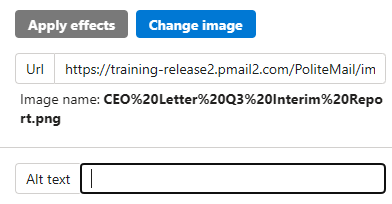 Insert an Image block where you want your image to go, and then click on the image to open its properties on the right.
- In the Image Properties, paste the url into the URL field. You can also add Alt text to describe your image if you wish, in the field below it.
- The image should appear in your message, and you're all set!
 Insert an Image block where you want your image to go, and then click on the image to open its properties on the right.
