Applies To: ■ PoliteMail Online ■ PMUA □ PoliteMail Desktop
Version: □ 5.1 □ 5.2 □ 5.3 ■ 5.4+
Personalization in PoliteMail is useful if, for example, you want to insert a recipient's name or a Custom Field, but what if you want to take it further? For example:
- There is a paragraph of content, or a link, that you want to only go to the management team? You could send two separate messages, but is there another solution that would save time?
- You want the content of several parts of the message to display in the language appropriate to the region it's being sent to, rather than send separate message for each language?
- The contact information for support needs to be displayed in the message, but you'd like it to dynamically change based on the location of the recipient, instead of providing a list and risk having the recipient contact the wrong person?
Introducing Dynamic Content! Available in the PoliteMail Builder or the Beefree Editor in PoliteMail Online, you can specify some content items to display in a message only when certain conditions are met! If you use Excel, think of it as conditional formatting for your email content!
Should I use Beefree or the PoliteMail Builder?
Either editor supports Dynamic Content in the same way. Beefree is generally simpler and more visual, but your options are a little more limited. Once you're used to it and have some very customized dynamic content you want to use, consider the PoliteMail Builder instead.
How Display Conditions Work
Display Conditions use the "Liquid Syntax" language, an open-source language also used by large companies such as Shopify.
In the Beefree Editor
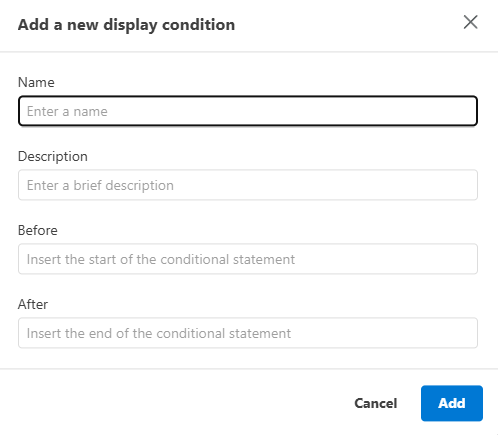 Select a Row in Beefree. You cannot select a Content block; it must be a Row.
- In the Beefree panel on the right, scroll down to the 'Dynamic Content' section and click the 'Select Condition' button.
- A window appears that lists all available custom fields. Click the field you want to make a condition on.
- Several possible conditions appears, such as "exists", "equals", etc. Select the condition you want. For example, if you have a Row that should display only if the 'Manager' field contains something (and for non-managers it's blank), you might select the Manager field and then select "Exists".
- An explanation of the display condition will show in the side panel.
 Select a Row in Beefree. You cannot select a Content block; it must be a Row.
When you click the Preview icon in Beefree, you can also set which conditions are true to see how your message will appear in that circumstance. [Starting with version 5.45 of PoliteMail, the Preview icon will display on the left side of each Row that contains Dynamic Content.]
Supported PoliteMail Properties
- First Name (FirstName)
- Last Name (LastName)
- Title
- Company
- Custom Fields (CustomX)
In the PoliteMail Builder (or out of it)
Whether you are in the Builder for the Desktop or PoliteMail Online (or even Beefree for that matter), you can always just enter your display conditions in Liquid Syntax format and it will work - the process outlined above for Beefree helps if you are not familiar with Liquid Syntax, but you can always dive in and enter the conditions manually in your message.
 If you are using Dynamic Content in Outlook, it is important to go into your Outlook settings and make sure the setting for replacing straight quotes with curly quotes in unchecked. Otherwise, Outlook will replace the straight quotes that Liquid Syntax recognizes with curly quotes, which Liquid Syntax will not, causing an error.
This setting requires several clicks to get to:
- Click on the File tab in Outlook for the Desktop and select 'Options. The Outlook Options window will display.
- Select the 'Mail' tab on the left. In the 'Compose Message' section, click the button on the right side that says 'Spelling and Autocorrect'. The Editor Options window will display.
- Click on the 'AutoCorrect Options' button, which is the first button in the Proofing section. The AutoCorrect window will display.
- Under the AutoFormat tab, in the Replace section, uncheck the "Straight quotes" with "smart quotes" checkbox.
- Repeat this under the 'AutoFormat as You Type' tab.
- Click 'Save' and close all pop-up windows to return to Outlook.
Note that AutoCorrect settings typically apply to all components of M365, so these changes will affect your instance of Microsoft Word as well.
Keep In Mind...
Liquid Syntax with PM for the Desktop (COM Addin): We recommend turning off Proofing in Outlook for M365 (File > Options > Mail > Spelling and Autocorrect) altogether if using Dynamic Content. See this article for more information.
Metrics: Metrics reports do not differentiate whether content, such as links, is viewed by some recipients or all of them due to dynamic content. This could potentially lead to lower potential click rates than expected. For example, if 25 people click a link in a message sent to 100 recipients but only 50 of those saw a link due to dynamic content, the Click Rate will show 25%, not 50%. To account for this, consider using some form of Segmentation for the different outcomes.
Error Handling: If a user enters invalid Liquid syntax, the send will be blocked by a validation step. However, if the syntax is valid but logically flawed (e.g., a typo in a condition like
if contact.custom1 == 'Engish'), the content block may simply not appear, potentially resulting in a blank email.Custom Fields that are Dates: Dates for custom fields are not stored as strings, which means that if your custom date field uses text such as "Tues", or "Dec", any dynamic content using that field will not display. Instead, make sure your dates use a numeric 'yyyy-mm-dd' format, such as 2026-01-14. This also applies to times. You can learn more about ISO-standard date and time formats here.

